
How to Set Up a Customer Form for Your Tree Service/Business
Getting started · 2 min read
The customer form lets customers and leads enter the job details themselves. Share it as a link, and a completed form lands in ArbTask as a new job, with all the job and customer details already in.
Get your form link
To get your form link:
- Tap the account icon (top right)
- Tap Integrations
- On the Customer Form tab, tap ‘Copy’
Share it
Put the link where customers can find it. Your website home page, your social media bio, or sent straight to someone who asks for a quote. One link covers all of them.
What the customer fills in
The form asks the customer for what you need up front:
- Their address
- A description of the work
- Photos
- Contact details
- A pin on the map for the exact spot
Make it yours
Set the form up so it matches how your business talks to customers. You can change three things on the same Customer Form tab, under the link.
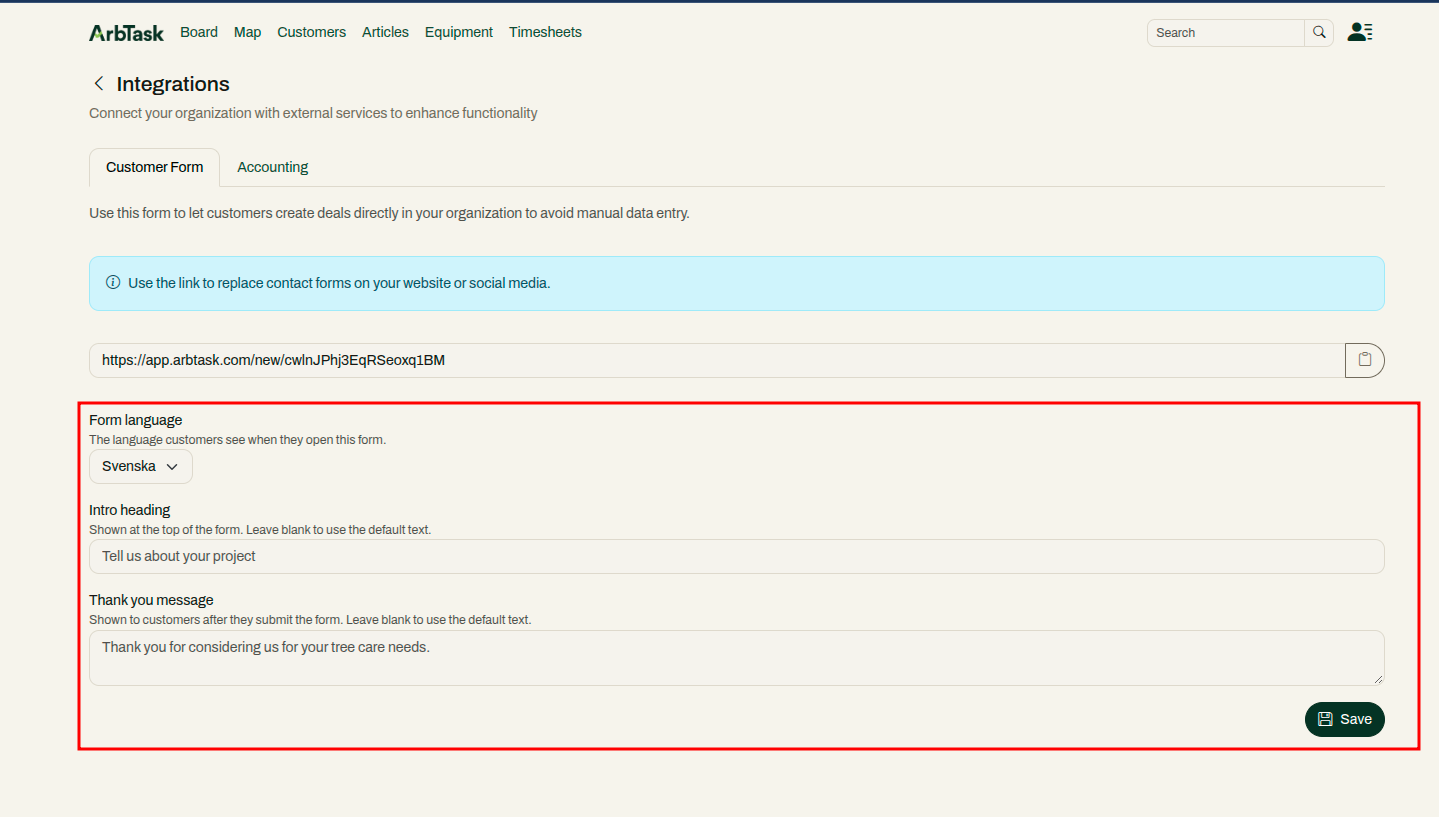
Form language: the language customers see when they open the form. Pick it from the list.
Intro heading: the line at the top of the form. For example, “Tell us about your project.”
Thank you message: what customers see after they send the form. For example, “Thank you for considering us for your tree care needs.”
Don’t want to change the heading or the message? Leave them empty. ArbTask uses its own text.
Tap Save when you’re done.
Where the job goes
A completed form creates a job for you automatically. It lands on the left-most list of your deal board, and shows up as a pin on your map where the customer dropped it.
You get an email when a form comes in, so you stop chasing people for the basics.
Try it
ArbTask is free to start. No contract. No credit card. No sales call.