
Using the deal board
- Jun 25
- 2 min read
Updated: Jul 8
Getting started · 2 min read
The deal board is one of two ways you see your jobs in ArbTask. The other is the map. On the board, every job shows up as a card.
How the board is laid out

Each column on the board is a list. The default lists are:
Kolla på (EN: Check out): new jobs to look at
Budgivning (EN: Bidding): jobs in a bidding process
Såld (EN: Sold): jobs you have won
A job that comes in through your customer form lands on the left-most list.
The lists are yours to change. Rename them, reorder them, or add your own to match how you run jobs.
Adding a job
Jobs land on the board in two ways.
The first is your customer form. When someone fills it out, a card shows up on the left-most list on its own. You do nothing.
The second is adding one yourself. Use this for jobs that come in by phone, text, or a chat on site.
To add a job:
Find the list where you want the job to start.
Click "New Deal" at the bottom of that list.
The job opens right away. Give it a name, like the address or the customer.
Add what you have: a description, the customer, an address, and tags.
That is all it takes. The card sits in your list for the whole team to see. You can come back any time to fill in the rest.
Inside the job you can also track time, write comments, attach pictures, and build an offer.
Moving a job
Moving a job is one drag. Pull its card from one list to the next. The board updates for the whole team at once. No texts to send, no one asking where a job stands.
What sits inside a job
Tap a card to open the job. Inside is everything tied to that work: the address, photos, a description, the customer's contact details, comments from the crew, and a timeline of what has happened.
Color Coding
Each list has its own color. That color marks the state of every job in it. The board reads at a glance.
To change a list's color:
Click the down arrow next to "New Deal"
Click "Edit Board"
Click "Background Color"
Pick a color
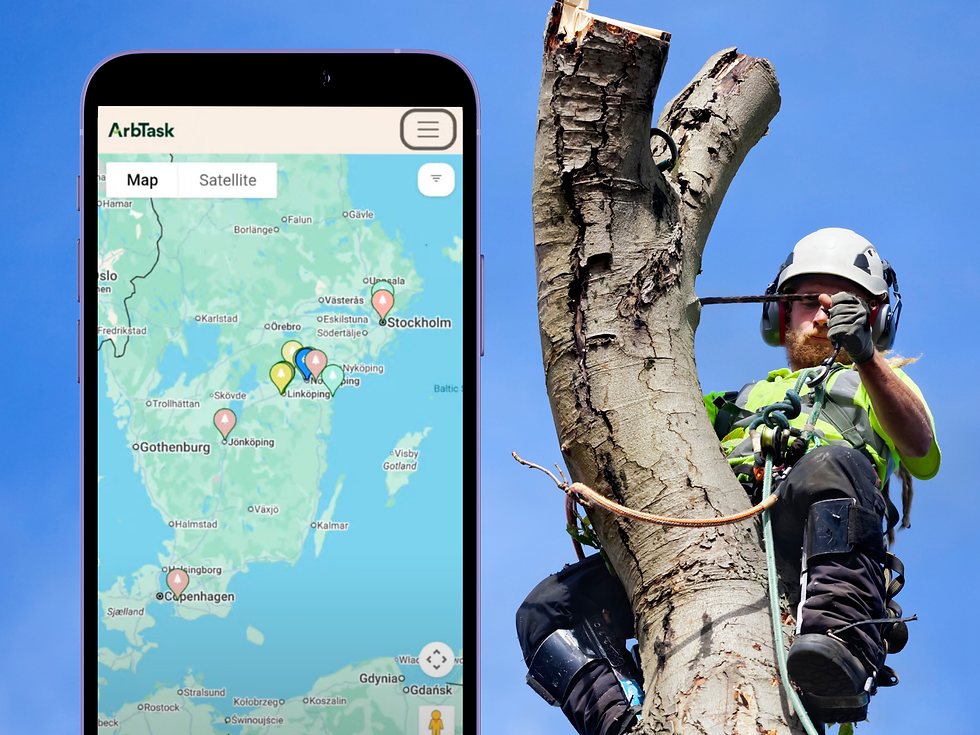
The map uses the same colors. Change a list's color and its pins on the map update on their own.
"Jag får snabbt koll på beställningarna och kan anpassa systemet efter mina behov. Jag tycker särskilt om att koppla projekt till Google Maps och organisera arbetet med olika färger." - Veronika, sågRÄVEN
(EN: I get quick control over orders and can adapt the system to how I work. I especially like linking jobs to Google Maps and organising the work with colours.)
The board and the map
The same jobs show on the map. Use the board to see how far along each job is. Use the map to see where it is. Switch between them depending on what you need.
Try it
ArbTask is free to start. No contract. No credit card. No sales call. Give it a look at arbtask.com.


Comments